

XSplit Broadcaster: October 2026 Update

The October 2026 update for XSplit Broadcaster (version 4.6.2609.2802) brings faster setup switching, Intel Arc support for Twitch Enhanced Broadcasting, and more control over streaming and recording outputs.
To get the update, open Help > Check for updates in XSplit Broadcaster.
What’s new this October
Presentation Switcher
Switch between saved setups directly from the main window. Each Presentation keeps its own scenes, sources, output channels and video settings, including resolution. It also saves the stream title and description for each output.
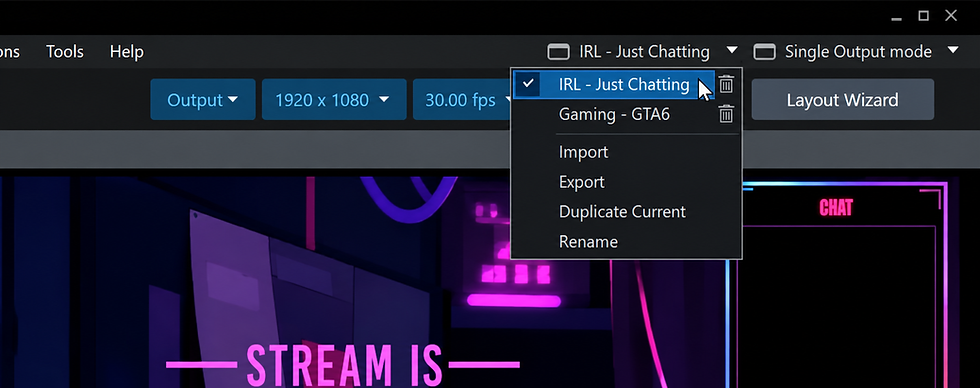
Keep a separate Presentation for each game or a podcast with guests. Click the current Presentation name in the top toolbar and choose the setup you want to load. Your saved setup and stream details load with it, ready for that game or show. Learn how to use the Presentation Switcher.
Twitch Enhanced Broadcasting now supports Intel Arc Alchemist and Battlemage
Support now extends to Intel Arc Alchemist and Battlemage discrete GPUs. Intel Quick Sync lets you stream using H.264 or H.265 encoding. Twitch automatically configures multiple versions of your stream based on your hardware and available bandwidth. Viewers can choose a quality that suits their connection. See our Enhanced Broadcasting guide for details.
On eligible Twitch channels, these GPUs also support Dual Format Streaming, sending horizontal and vertical versions of your stream together.
YouTube Gifts
Gift activity now appears in the Stream Dashboard and YouTube Live Alerts for eligible channels with Gifts enabled. Our alerts guide covers connecting and customizing them.

Kick Chat Viewer
You can now view your Kick channel’s chat in Broadcaster and customize its appearance and message format.
More control from your Stream Deck
The updated XSplit Controller plugin brings Multi Output Mode controls to your Stream Deck. For streaming and recording actions, choose a channel or recording setup, then select output 1, output 2 or All. You can start and stop either output separately or control both together, giving you more flexibility when managing your streams and recordings.
The update also adds microphone and speaker volume controls, connection improvements and more.
Multitrack audio enabled by default
Multitrack audio recording is now enabled by default for new Local Recording setups. This existing feature lets you edit audio tracks separately after recording, such as adjusting microphone levels without changing the game audio. Review your audio track assignments to choose what goes into each track. Existing recording configurations keep their settings.
Media playback and reliability
Updated decoding and playback cover video and audio files as well as RTMP and RTSP streams. This release also fixes cases where some video files produced audio without a picture, some MP3 files would not play, and adding an RTSP source caused a crash.
Other improvements
Presentation packages: Exported packages now include Stinger and Luma transition files, making it easier to move a setup between computers with its transitions intact.
Media Playlist: Video Playlist is now called Media Playlist and supports both audio and video files.
For the full list of changes and known issues, read the October 2026 release notes.
Where did the Broadcast menu go?
If you’ve been looking for the Broadcast menu, you’ll notice it’s gone. The Output menu now brings your streaming channels together. It’s where you add a platform, manage its settings and choose which channels the main Stream button will start.
Here’s the basic flow:
Open Output and choose Set up a new output. Select your streaming platform and connect your account.
Select the channels you want to use from the Output dropdown.
Click the main Stream button. Complete any required stream details before going live.
Adding a channel through the Output menu lets you prepare it before starting your stream. To adjust an existing channel, click the gear icon beside it to open its properties.
Stream Info also gives you more control over what happens before you go live. Choose Ask every time to review your stream details at each start, or Save as default to reuse your saved details. Twitch and Kick also offer Use platform details to keep the information already set on the platform.
Once your channels are selected, the main Stream button starts them together. That gives you one place to go live whether you’re streaming to one channel or several.
Try future updates in beta
Many features in this release first appeared in beta.
Beta builds may be less stable, so test your setup before streaming live.
We’d love to hear what you think as you try new features. Share your feedback on our Discord server or through the Support chat.



Comments